A Million Times

clocks1

clocks2

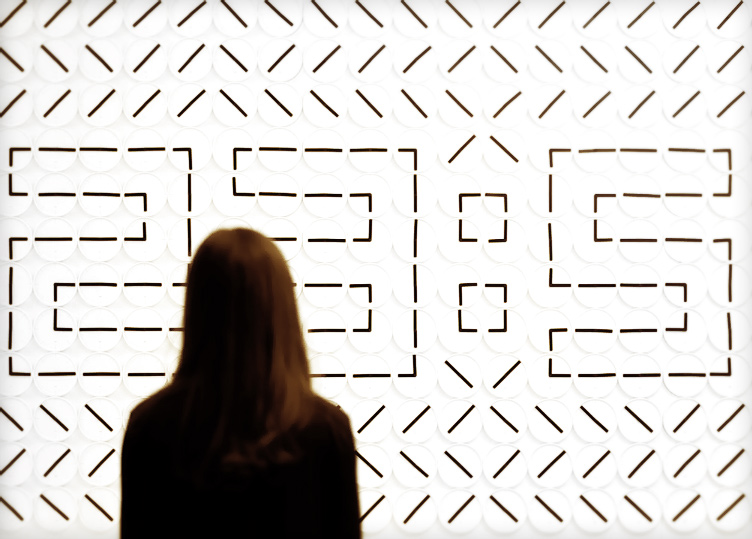
Swedish Design Studio Human since 1982 combined 288 analogue clocks to create this installation of shifting monochrome patterns, forming letters and numbers. This piece is called ‘A Million Times’ for Victor Hunt Designart and features 576 motors which can be controlled via a customized software on an iPad. The two arms of the clocks are slowly dancing around the center revealing hidden figuratives. Together they create a giant display for digital time expression which is a follow-up to the studios smaller clock works. Born in 1982 Per Emanuelsson and Bastian Bischoff founded their studio in 2008 and are now working and living in Stockholm. Their claim is to arouse curiosity by creating material hints of how the world might be.

(via iGNANT)


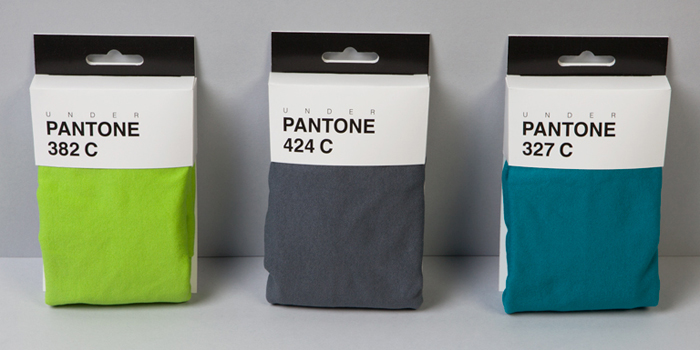
Underpantones

Underpantones

Personally, I think it’s a good idea they didn’t decide to name the product: PMS Underwear. From the manufacturer web site:

“Suddenly, the Pantone brand is everywhere. Overuse? Maybe. But, as they say, if you can’t beat ‘em… so, over a few beers, we decided to add to the products on offer. Ladies and gentlemen, for him and for her, we present underpantones (and, of course, pantytones)! If we had our way it’s what every well-dressed designer would be wearing.”

(via Gret)

Delete All Mail on iOS 6+

iOS6

It always frustrated me that you have to delete POP3 messages individually on iOS 6+. If you have IMAP set-up for your accounts, they’ll automatically delete with each deleted message on your PC or other devices, however,POP3 doesn’t sync in the same way that IMAP does.

Naturally, Google implemented the easy and obvious option of deleting all mail on your phone with the click of a button. Apple, however, is a company that consistently thinks they know what’s best for you. Deleting emails individually is a surefire way to ensure you’re not accidentally deleting an email you need or haven’t yet read,  spam included. I think of this as Apple’s version of eating your vegetables.

After much searching and tinkering, however, I’d nailed down the process of clearing my inboxes at the end of the night, an arduous task that used to involve 100+ clicks while sitting on the train-ride home. This process has reduced the number of clicks substantially to just five.

Note that I’ve added an additional step to clear the badge from the home screen mail icon, which taunts of phantom messages if this step is excluded.

  1. Click the Mail icon and go to “All Inboxes”
  2. Press the “Edit” button and select the first message.
  3. Hold down “Mark” and, with it still depressed, deselect the first message.
  4. Release the “Mark” button and click “Mark as Read”
  5. Click the “Edit” button and select the first message.
  6. Hold down “Move” and, with it still depressed, deselect the first message.
  7. Release the “Move” button and click the Trash folder.

That’s it, you’re done!

Update: 04/01/2013: Well, it truly is April Fool’s Day. Apparently, using the above method, the emails are deleted from the inbox and moved to the trash until you switch mailboxes and return to the “All Inboxes” folder, where they  mysteriously return. Bah, Apple. You’ve done it again. Either way, you can still use the above method to “Mark as Read” all messages, removing the badge from your home screen mail icon. But, you’ll still see the “read” messages in the list when visiting “All Inboxes” and the folder size will continue to grow until you manually delete the messages one-by-one. Frustrating, innit?
Adults Photoshopped Like Toddlers

Young Zeh

A few weeks back, I came across this article on Mashable and shared it with my friend, Zeh. I thought Cristian Girotto, the guy responsible, was pretty talented and wondered if I could do it. Zeh’s response was that we could probably figure it out, but it would take a ton of time. And so, I challenged him. Zeh, being Zeh, naturally accepted. We swapped photos and got to work.

He was right. It took a ton of time. And I don’t think the product is close to the quality of Mr. Girotto’s work. But here’s my version of Young Zeh. Needless to say, I’m excited (and a bit frightened) to see how Zeh’s toddler photo of me comes out.

Some of Cristian’s work is below, for your amusement.  Read more

Diss ‘n’ Gauges

Diss 'n' Gauges: Menu

I’m pleased to announce my first application is ready for sale on Google Play and Apple App Store. You can also see the information about Diss ‘n’ Gauges in my company’s portfolio.

Diss ‘n’ Gauges: Sometimes the best response is an app!

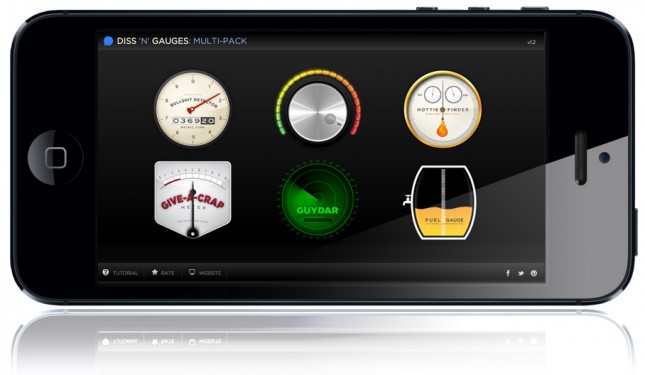
Diss ‘n’ Gauges: Multi-Pack combines all our individual meters into one great application. Are you looking for best and funniest way to start or end (disengage from) a conversation?

The Multi-Pack includes:

  1. BS Detector: Is your friend talking out of their butt? Inform them (and the rest of your party) that you’re not buying it.
  2. Dial Down the B!tch: Is your friend acting nasty or spiteful and it’s exceeding your tolerance level? Inform them (and the rest of your party) that they need to dial it down a bit.
  3. Give-a-Crap Meter: Is your friend droning on and on about something that you couldn’t care less about (say, Crossfit, for instance)? Inform them (and the rest of your party) of your disinterest in a fun way.
  4. Hottie Finder: Looking for a great way to strike up a conversation with that beautiful girl or guy across the bar? Let our Hottie Finder act as a divining rod to direct you to them!
  5. Gaydar: Often find yourself in a dance club, at a karaoke hall, or on a cruise ship with no way to hone-in on the guys around you?
  6. Fuel Gauge: Need some help deciding if you need one more or had one too many? Here’s a quick, clever way to reply to friends when they ask if you’re ready for another round.

All meters react to tapping on the screen. Tap once to trigger, tap a second time to reset. Diss ‘n’ Gauges is now available for iOS (iPhone, iPad) and Android phones and tablets.